Module 3: Links and Media · Lesson 8 of 8
HTML Project for Beginners: Build a Travel Postcard
All lessons in Module 3
Goal: Build a postcard page that has a captioned image, media, page jumps and links.
Learn
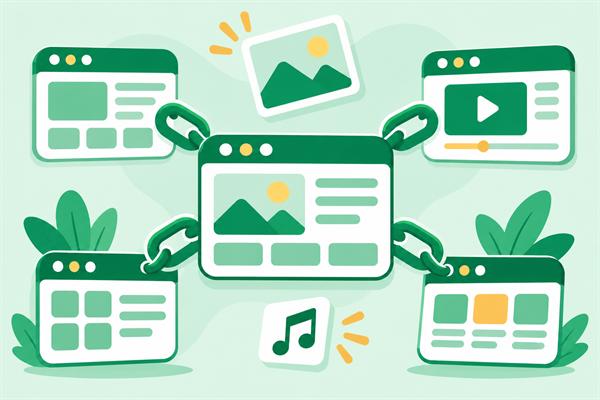
Send a postcard from a place you love, real or imaginary, using everything from this module: links with good text, relative paths and absolute paths, a page jump, a new tab where it helps, an image with alt text inside a figure, and some sound or video.
Plan it like a real postcard, with a picture on top, a short message and a couple of extras. Then check the details that separate good pages from almost-good ones: alt text that actually describes, a caption that adds context, link text that makes sense on its own, and media with controls.
Files you can use: mountains.svg, hello.html, and the flower.webm, flower.mp4 and t-rex-roar.mp3 files from the earlier Audio and Video lesson.
The short version
- Put the image in a
<figure>with alt text that describes it and a<figcaption>that adds context. - Give every
<audio>or<video>thecontrolsattribute. - A jump link needs a matching pair:
id="tips"on the target andhref="#tips"on the link. - Use relative paths for your own pages and full
https://addresses for other sites. Open only outside links in a new tab, and say so in the link text.
Example
<figure>
  <img src="mountains.svg" alt="Snowy mountain peaks">
  <figcaption>Day three, above the clouds.</figcaption>
</figure>
<p><a href="#tips">Jump to my tips</a></p>
<h2 id="tips">Tips</h2>Your task
Build a travel postcard page:
- Finish the
<h1>, for exampleGreetings from the Alps, and add a paragraph with your message. - A
<figure>withmountains.svg(with alt text) and a<figcaption>. - An
<audio>or<video>withcontrols. - An
<h2>withid="tips"for your travel tips, and a link that jumps to it withhref="#tips". - A link to another website with a full
https://address that opens in a new tab. - A relative link to
hello.html.
Ctrl+Enter checks your code. Try Visual edit to change the page directly, DOM tree to see how the browser reads it, and Outline to hear it like a screen reader.
Quick quiz
Common mistakes
Wrong
<a href="#tips">Jump to my tips</a>
<h2 id="#tips">Travel tips</h2>
Right
<a href="#tips">Jump to my tips</a>
<h2 id="tips">Travel tips</h2>
The # belongs only in the href. An id of #tips doesn't match the link, so the jump goes nowhere.
Wrong
<a href="hello.html" target="_blank">my welcome page</a>Right
<a href="hello.html">my welcome page</a>Pages of your own site should open in the same tab. Save new tabs for outside links where they actually help.
Go deeper
Before you call the postcard finished, test it the way different visitors will experience it. Unplug your mouse, or stop touching it, and press Tab. Every link should be reachable, and you should always see which one has focus. Then imagine the image failed to load: does the alt text still tell the story?
Check your media on a phone too. A video wider than the screen, or audio that starts by itself, is the first thing mobile visitors notice. Fixed pixel sizes are fine for now. In later lessons you will make media fit any screen with a touch of CSS.
Look at your links once more, out of context. Read only the link texts in order: "Jump to my travel tips", "mountain weather forecast", "welcome page". If each one tells you where it goes, you meet the WCAG rule on link purpose (opens in a new tab). Screen reader users who browse by links will find their way, and search engines get a clearer idea of where your links point.
Send the finished page to a friend and watch them use it without explaining anything. Each time they hesitate, note what they were looking for.
Frequently asked questions
What are good HTML projects for beginners?
Small pages with a clear purpose work best: a personal profile, a recipe card, a travel postcard, a tribute page about someone you admire, or a one-page site for a club or imaginary product. Each one practices headings, lists, links and images in a realistic way. Finish a few small projects completely before you start one huge site.
How do I check if my HTML is correct?
Paste your code into the W3C Markup Validation Service (opens in a new tab) to find syntax errors. Then test it like a visitor: click every link, press Tab to move through the page with the keyboard, and check that images have sensible alt text. The Lighthouse panel in Chrome's developer tools adds an automatic accessibility report.
Can I use any photo or music I find on my web page?
No. Most images, songs and videos online are protected by copyright, even without a notice. Use your own work, or media whose license allows reuse, such as public domain (opens in a new tab) (CC0) files or sites like Unsplash and Wikimedia Commons, and credit the creator when the license asks you to. A caption is a natural place for that credit.